Git-based AI attribution using the GitLab Community Edition software#

Archive saves a completed chat state in GitLab. Press and hold the archive icon below a response for one second. It creates a versioned commit and a link to that exact state. In agent mode, the associated working files are archived too.
chatBHT and gitlab.chatbht.com use the same institutional sign-in. The additional GitLab authorisation allows chatBHT to use your selected repository as an archive.
How the record is created#
Select a chat state, archive it and include the commit link in your work. After the one-second hold, the archive contents are checked. Internal or public repositories require an additional sharing confirmation before a commit is created.
- 01 Users Formulate an idea, send a prompt and check the response
- 02 LLM provider Process the prompt and return AI output to chatBHT
- 03 GitLab instance Version the selected chat and worktree together in one commit
- 04 Academic work Disclose the version-specific link and reference it as a record of AI use
Distinguish an AI-use record from a source
An academic citation identifies the source of a factual statement. An AI-use record documents how generative AI contributed to the working process. They complement each other; neither replaces the other.
Connect GitLab once#
Archiving requires a repository on the connected GitLab instance. Configure it in the settings window. Afterwards, the reference action is available directly below AI responses.
Step 1: Open settings#
Open Settings using the gear icon in the header or Account → Settings in the sidebar. Select the Archive tab in the window.
Step 2: Connect GitLab#
On the Archive tab, select Connect GitLab. If the integration has not been configured yet, the app indicates this here.
Institutional sign-in and GitLab authorisation serve different purposes:
Single sign-on ensures that chatBHT and GitLab use the same institutional identity.
GitLab authorisation additionally permits chatBHT to perform the explicitly approved repository actions on that person’s behalf.
If an institutional GitLab session is already open, sign-in may continue without entering credentials again. GitLab still displays the permissions to approve. The authorisation is personal, stored on the server and revocable.
After connecting successfully, you return to chatBHT. The archive section shows your GitLab username, Connected status and available archive destinations.
Step 3: Select or create a repository#
Existing repository and Create new repository appear at the top of Archive, before the connection status and destination list. Use an existing GitLab project or create a new repository directly from chatBHT.
Select an existing repository#
Select Existing repository.
Choose a GitLab project you can write to.
Optionally specify a branch. If left blank, the default branch is used.
Set the target folder. The default is
chatbht.Confirm with Use as archive destination.
The project selector lists only projects for which the connected GitLab account has sufficient write permissions and an initialised repository.
Create a new repository#
Select Create new repository.
Enter a distinctive name, such as
ai-use-records.Choose its visibility. Private (recommended) is preselected.
Confirm with Create and select.
chatBHT creates the project through the GitLab API, initialises it and immediately sets it as the archive destination. Internal and public repositories require additional explicit confirmation: the complete chat and, in agent mode, the entire workspace become readable by signed-in institutional users or by everyone on the internet, respectively.
Set the archive destination#
When settings are opened without an active chat context, a selected repository becomes the Default archive destination. When opened from a particular chat, an Archive destination for this chat can be set instead. Only repositories accessible to the connected GitLab user are shown; the HTML views use the example account demo.
The filled selection circle marks the active destination. ↗ opens the repository in GitLab; × removes it from the configured destinations. This does not delete the GitLab project itself.
Disconnect GitLab#
Select Disconnect in the green connection panel to remove the connection. chatBHT attempts to revoke the GitLab authorisation and removes the locally stored connection. Existing commits and repositories remain in GitLab, subject to their access permissions.
Archive a chat and copy its commit link#
After setup, the archive action appears at the bottom right of each completed AI response, beside the Markdown/plaintext toggle and copy action. In agent mode, the associated worktree and generated files appear immediately below the response.
Before archiving#
The archive icon appears below the response. A commit link appears only after a successful archive. First review the complete chat and any working files.
This preview is interactive: press and hold the archive icon to try the process with example data. It does not send data or create real commits.
Hold for one second#
As soon as you press the icon, a slim hint appears with Hold, a small ring and 1.0 s. Keep holding while the ring fills clockwise and the countdown decreases in tenths of a second to 0.0 s. On a phone, the indicator stays compact and clear of your finger.
A short tap only shows the hint. Releasing early or moving your finger away cancels the action: the ring unwinds like a rotary dial and the countdown returns to 1.0 s. The hint stays visible briefly; tapping elsewhere dismisses it too. Each new attempt requires a full second, so several short taps do not add up. With a keyboard, focus the icon and hold Space or Enter; Escape cancels. When reduced motion is enabled, the ring resets without an unwinding animation.
Review institutional sharing#
After the hold, chatBHT checks the destination and current contents. For a private repository, it archives the reviewed state directly. For Internal, it opens Share within the institution?.
The dialog identifies the repository, branch, message count, working files and audience. Internal means that signed-in institutional GitLab users can read the archived state according to GitLab access rules. This creates a GitLab snapshot; use Share a chat separately to create a public chat link.
Also review any recorded personal context. Only then select the confirmation checkbox. This enables Share and archive:
Cancel or Escape closes the dialog without creating a commit. For Public, the corresponding dialog explicitly states that anyone on the internet can read the contents. Holding the icon does not itself approve sharing.
After the commit#
After confirming, wait for the green checkmark and Commit link. Open it or copy its link address for your reference.
The link uses the full commit identifier rather than a changing branch reference. It therefore leads to the exact archive file created in that commit. Successful archiving remains visible on the response after reloading or reopening the chat.
Archiving saves the entire completed chat up to that point, including recorded personal context. In agent mode, the complete associated workspace is included in the same commit. Holding again checks the current state; identical contents do not create a duplicate commit.
Chat history archive and GitLab evidence#
There are two archive actions in the interface, and they answer different questions. In the chat list, open the three-dot menu and choose Archive to move a conversation out of the normal history view. Below a completed response, hold the archive icon to save the reviewed chat and, in agent mode, its worktree in GitLab.
Action |
What a reader gets |
|---|---|
Archive in the chat list |
An archived chat in the same chatBHT account. It does not create a GitLab commit or a public record. |
Archive icon below a response |
A GitLab commit containing the completed chat, recorded context, provenance and captured worktree. The commit link fixes the saved version. |
A shared chat link is created separately with Share. It lets the selected audience read a chat through chatBHT; it is not the GitLab commit. The example below shows both links, so readers can open the conversation in the app and independently inspect the saved GitLab evidence. Temporary chats cannot be transferred to GitLab.
What is archived?#
The readable Markdown transcript starts with a YAML header and lists messages in order. The same commit also contains a JSON provenance record and, in agent mode, a byte-for-byte copy of regular worktree files.
Part of the saved state |
What it helps a reader establish |
|---|---|
Chat ID, title and timestamps |
Which conversation was saved and when each message and the archive were recorded. |
Messages, roles and recorded context |
What was asked and answered; model routing and personalisation appear when they were recorded. |
Content SHA-256 |
Which canonical chat and worktree manifest belong to this snapshot. |
Worktree manifest and files |
Names, sizes and SHA-256 checksums for the captured files, plus their original bytes. |
|
Relationships between the recorded person, chat activity, model route, messages and file entities, together with capture details and explicit evidence limits. |
The default layout is:
chatbht/chats/<chat-id>/<title>-<content-hash>.md
chatbht/chats/<chat-id>/<title>-<content-hash>/chatBHT-provenance.json
chatbht/chats/<chat-id>/<title>-<content-hash>/worktree/<file-path>
An empty agent directory is represented by a .gitkeep file. Git’s internal metadata is not copied into the worktree snapshot. Symbolic links are not followed; finding one stops the archive rather than silently omitting a file. Identical content in the same project and branch is reused after verification; a changed chat or worktree produces a new version.
Example: one agent run, one public GitLab commit#
On 15 September 2026, a user asked an agent to create a publication-ready graphical proof of (a + b)² = a² + 2ab + b². The prompt requested exactly two deliverables: a short English README.md and an accessible standalone SVG. The archived transcript contains the prompt and one assistant response. The worktree contains both requested files; the commit also contains the provenance JSON and a .gitkeep for an empty artifacts/ directory.
Open the shared chat in chatBHT to see the conversation in the app. This is a separate public view of the same titled chat; the GitLab commit below is the fixed archive evidence.
Open the exact archive commit ba895503c93ff202a2d6d3c08568452aadec27d0 in the public open-weight-models-benchmark repository. All links below use that commit identifier rather than main, so they continue to describe this snapshot if the branch changes.
Evidence in that commit |
Open |
Download the archived bytes |
|---|---|---|
Chat transcript and YAML header |
||
Provenance record |
||
Agent’s explanation |
||
Graphical proof |


The worktree directory at this commit lets you inspect the two deliverables together. The SVG below is a local copy of the archived file, so the figure also loads from docs.chatbht.com when this documentation is published.
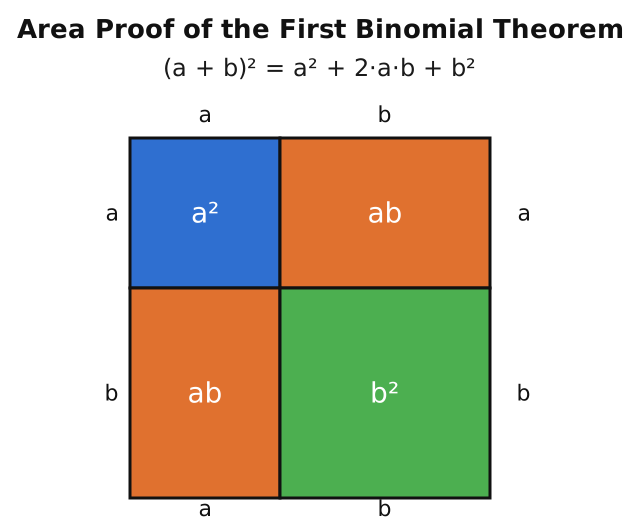
Fig. 1 The SVG captured in the agent worktree: four labelled regions make the area identity visible. Its SHA-256 is 92cd8fa76e50fcd25a6013c95f7f09b3b27d2cc3ca90a98ae3f8fa860114fe33.#
Read the archive metadata#
The Markdown file begins with this header from the example. The model value is the chat’s stored model name; the separate route below records the model and provider used for the assistant generation.
schema: "chatbht.archive/v2"
chat_id: "27721406-bf85-47c7-8264-910844d79ec3"
title: "First Binomial Theorem - DeepSeek V4 Flash 0731"
archived_at: "2026-09-15T00:12:55.354889+00:00"
model: "deepseek_v4_flash"
message_count: 2
worktree_file_count: 2
worktree_total_size: 4528
content_sha256: "e4dd09c71523230a8c47c00c824531ecb2d4e1dba40b4e684805f996e41b92ff"
The 4,528 bytes are the combined sizes of the two captured worktree files, not the whole repository. The transcript also records generation_routing as agent mode, model deepseek-v4-flash-0731, provider deepseek; it records that memories were disabled and none were used. These fields describe what chatBHT captured for this run. This example contains no archived session log or token-usage entries, so the old example’s token totals do not apply.
The three P’s: Prompt, Process, Provenance#
The provenance JSON in this same commit uses W3C PROV relationships. The three P’s are a practical reading order for the archive, not literal JSON field names:
P |
What to inspect in this example |
|---|---|
Prompt |
Read the user message in the archived transcript. It asks for exactly |
Process |
Follow the recorded assistant generation after that prompt: message |
Provenance |
Use the commit-fixed JSON and file links to establish which person selected the snapshot, which public project and branch received it, when it was archived and which bytes were captured. The JSON links the prompt, generation and file entities, gives checksums, and states where attribution or attestation is not recorded. |
Selected fields from the JSON show where the state was saved and how strong the attestation is:
{
  "schema": "chatbht.provenance/v1",
  "capture": {
    "archived_at": "2026-09-15T00:12:55.354889+00:00",
    "branch": "main",
    "gitlab_origin": "https://gitlab.chatbht.com",
    "project_id": 20,
    "selected_by": "https://auth.chatbht.com/o/subjects/55",
    "visibility": "public",
    "markdown_path": "chatbht/chats/27721406-bf85-47c7-8264-910844d79ec3/first-binomial-theorem-deepseek-v4-flash-0731-e4dd09c71523.md",
    "markdown_sha256": "7d141f8b052c13c31a6a181df04a84d72123fb6b03db12a84d4fdfac7b79a157"
  },
  "attestation": {
    "signed": false,
    "trusted_timestamp": false
  }
}
Here selected_by is the recorded identity reference, project_id identifies the GitLab destination, and markdown_path locates the transcript within it. The JSON was written alongside the transcript and files in the commit; it does not itself contain the later GitLab commit SHA. The commit link supplies that fixed version.
The SVG’s actual graph entry is especially useful when checking a downloaded file:
{
  "@id": "./worktree/first-binomial-theorem.svg",
  "@type": "prov:Entity",
  "generation_attribution": "not_recorded",
  "sha256": "92cd8fa76e50fcd25a6013c95f7f09b3b27d2cc3ca90a98ae3f8fa860114fe33",
  "size": 3223
}
generation_attribution: "not_recorded" is a deliberate limit: the archive preserves the SVG bytes and the assistant’s statement about its work, but it does not independently establish which individual model call or human edit produced the file. Likewise, the generation activity says input_context_completeness: "not_recorded"; it links the recorded prompt but does not claim to contain every runtime input. The provenance file is neither signed nor given a trusted timestamp. The short-lived signed review used before committing is a different mechanism.
The public destination requires a release confirmation in the UI, but this JSON does not contain a separate event log of that gesture. Its capture.visibility records the destination’s visibility at capture time.
Follow the fixed archive state#
The GitLab commit identifier fixes a repository version. The content_sha256 in the Markdown identifies the canonical chat content and worktree manifest used to name this snapshot; it is not the SVG’s checksum. capture.markdown_sha256 checks the transcript’s exact bytes, while each worktree entity’s SHA-256 checks its own file. A reader can open the pinned commit, read the transcript, inspect the provenance relationships, download the files and compare their checksums. The public repository makes these links readable without a GitLab account; the shared chat is a separate view of the conversation.
Choose archive visibility#
New repositories are private by default. Appropriate visibility depends on the working context and sensitivity of the contents.
Visibility |
Access and suitable use |
|---|---|
Private |
Access is limited to authorised project members. Suitable for personal working states, confidential projects and records before release. |
Internal |
Eligible authenticated users of the GitLab instance can view the contents under the instance’s rules. Suitable for internal teaching and institutional review. |
Public |
The record may be accessible without signing in. Suitable for published work and teaching materials when privacy, copyright and confidentiality requirements allow it. |
GitLab supports these three visibility levels. Administrators can further restrict the available options. See GitLab’s project and group visibility documentation.
A private commit link identifies a precise state, but outsiders need permission to read it. For a public publication, the record must be accessible to its intended readers. An internal repository requires an eligible account on the instance; it is not generally public.
Warning
Do not archive personal, confidential, copyrighted or otherwise sensitive contents in an internal or public repository without the necessary authorisation. Check visibility before publishing a record.
Include the commit link in academic work#
The required form still depends on the citation style, discipline and requirements of the course, examinations office or publisher. A commit link can supplement a disclosure with a verifiable interaction record.
Example methodological disclosure#
An agent routed to deepseek-v4-flash-0731 through chatBHT was asked to explain the first binomial theorem and produce an SVG. The shared conversation can be read in the app; the chat, worktree and provenance were saved in GitLab commit ba895503c93ff202a2d6d3c08568452aadec27d0. The SVG should be checked as a mathematical explanation before reuse.
Limits of the record#
A commit documents which chat and working state was archived. It does not establish that the statements it contains are correct. Responsibility for checking, selecting, revising and interpreting the material remains with the person using it.
In particular:
AI output does not replace original academic sources.
Literature mentioned by a model must be checked and cited directly.
A commit documents a saved state, not the truth of its statements.
Uploaded images and documents are not automatically included as original files in the current archive format.
A link’s availability depends on the visibility and continued existence of the GitLab project.
The archived model name identifies the model stored for the chat; further technical details depend on the installation.
Long-term preservation requirements may additionally call for protected branches, signed commits or an institutional repository.
Next step#
The next chapter shows how to start a chat in chatBHT.