Computer Vision#
Use images, screenshots or diagrams when a question concerns visible content. Explain what you want chatBHT to identify, explain or compare.
Add an image to a chat#
With the agent switched off:
Open the paperclip in the message field.
Select a project and upload the image.
Check the image attachment above the message field.
Enter your question and send the message.
Find previously saved images under Attach files. The eye icon, labelled Analyse image, adds an image to the next request. A prompt can have up to five images. Project uploads support PNG, JPG/JPEG, WebP and GIF.
Paste images from the clipboard#
On desktop, you can also paste an image from the clipboard into the message field: Ctrl + V, or ⌘ + V on macOS. Check that the attachment appears afterwards. A filename in the prompt alone does not attach an image.
Ask a useful image question#
Explain the infrastructure diagram. First describe the access routes, then the components involved and finally the data flow.
Small text, blurry crops and complex diagrams can lead to recognition errors. Upload an enlarged detail if needed and compare the answer with the image.
Use images as project knowledge#
A direct image analysis applies to that image request. To also make an image available to the project’s text search, open Index image description in the file list.
You can enter your own description, enable Generate OCR from the original or select Use the latest image analysis. Then wait for processing to finish. A saved description is searchable text; it does not mean the original image is examined again for every later question.
Retained examples#
These three figures correspond to the previous figures 6, 7 and 8. The first shows the earlier interface; the current controls are shown as HTML above. The original example images are retained in their original language.
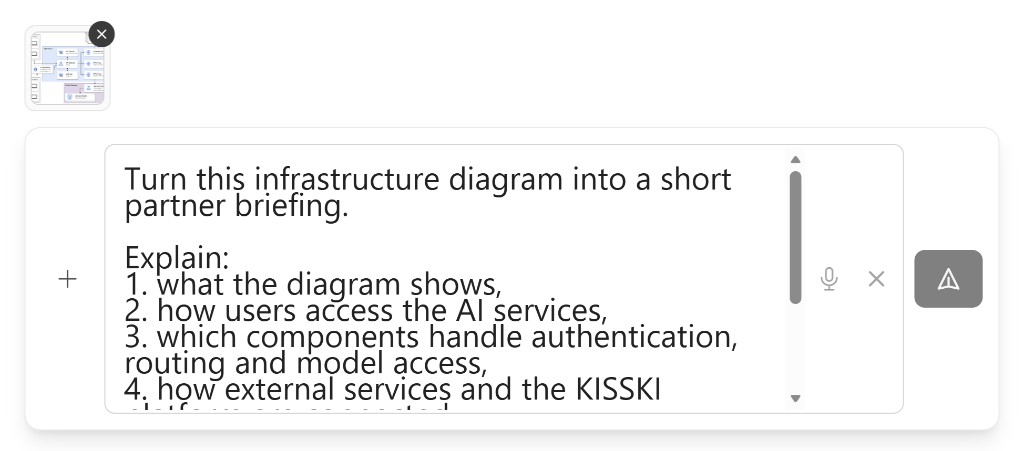
Fig. 2 Previous figure 6: An image attachment together with a specific question.#
Fig. 3 Previous figure 7: Paste images from the clipboard.#
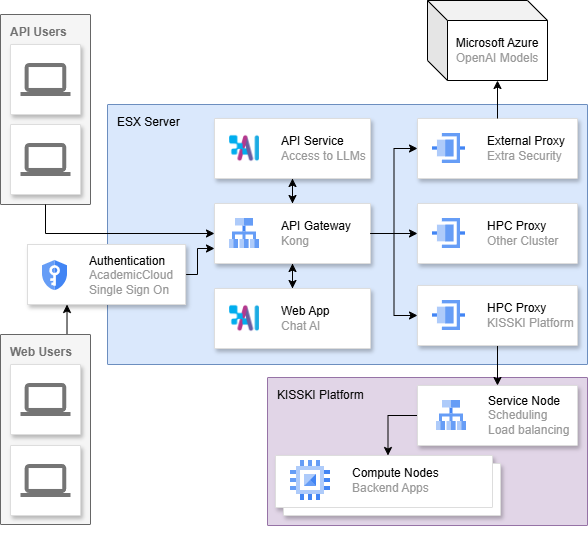
Fig. 4 Previous figure 8: An infrastructure diagram as the starting point for image analysis.#